Home · Blog · Replace Furniture in a Room Photo
How to Replace Just the Furniture in a Room Photo
You like your room. You just want to see it with a different sofa. But most AI tools hand back a whole new room. Here's how to swap one piece of furniture and keep everything else exactly as it is.
The short answer
To replace one piece of furniture, use a tool with masked or targeted editing — you point to (or paint over) the sofa, describe the new one, and only that area is regenerated. A normal "restyle" redraws the whole photo, which is why everything else changes.
In the DecorIn app: upload the photo, choose Replace Objects, brush over the piece, and type what you want ("a cognac leather sofa"). The walls, floor, rug and decor stay put.
Why AI usually changes the whole room
Most AI room tools work by taking your photo plus a style and generating a new image that resembles it. Every pixel is redrawn — so the sofa changes, but so do the lamp, the rug, the art and sometimes the windows.
To change only one thing, the tool needs to know where the thing is. That's what masking does: you mark the area, and only the marked area is regenerated. Everything outside it is kept from your original photo. More on this in why AI changed your whole room.
Step by step
- Take a clear photo. Good daylight, the whole piece in frame, shot from a corner or straight on. Avoid cutting off the furniture at the edge.
- Open a targeted edit tool. In the DecorIn app, choose Replace Objects.
- Mark the piece. Brush over the sofa, chair or table. You don't need to be precise — cover most of it, and the tool picks the object you meant.
- Describe the new piece. Be specific: type, color, material, shape. "Low walnut coffee table, oval" beats "nicer table."
- Check the result. Is the new piece the right size for the room? Does the light fall on it the same way? If not, redo just that piece.
- Stack changes. Like the sofa? Now change the rug — on top of the edited photo — without losing the new sofa.
Real examples
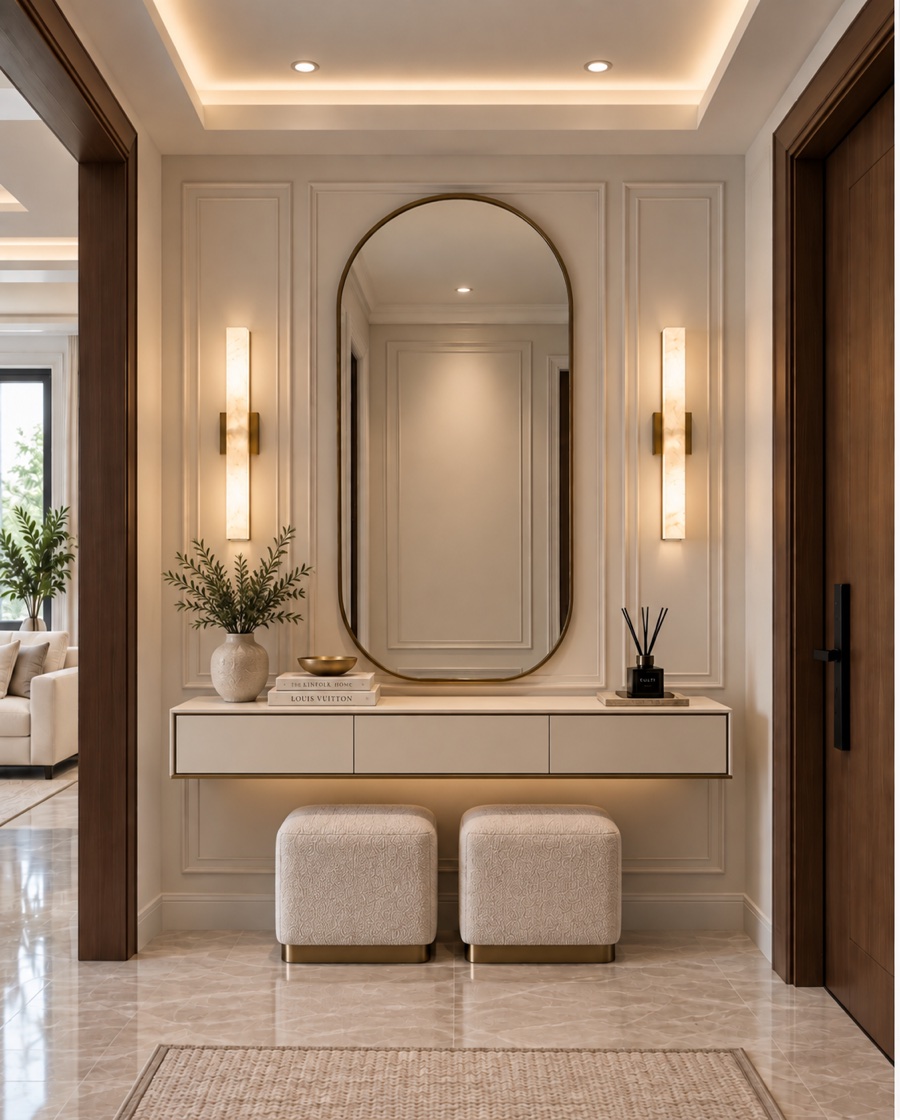
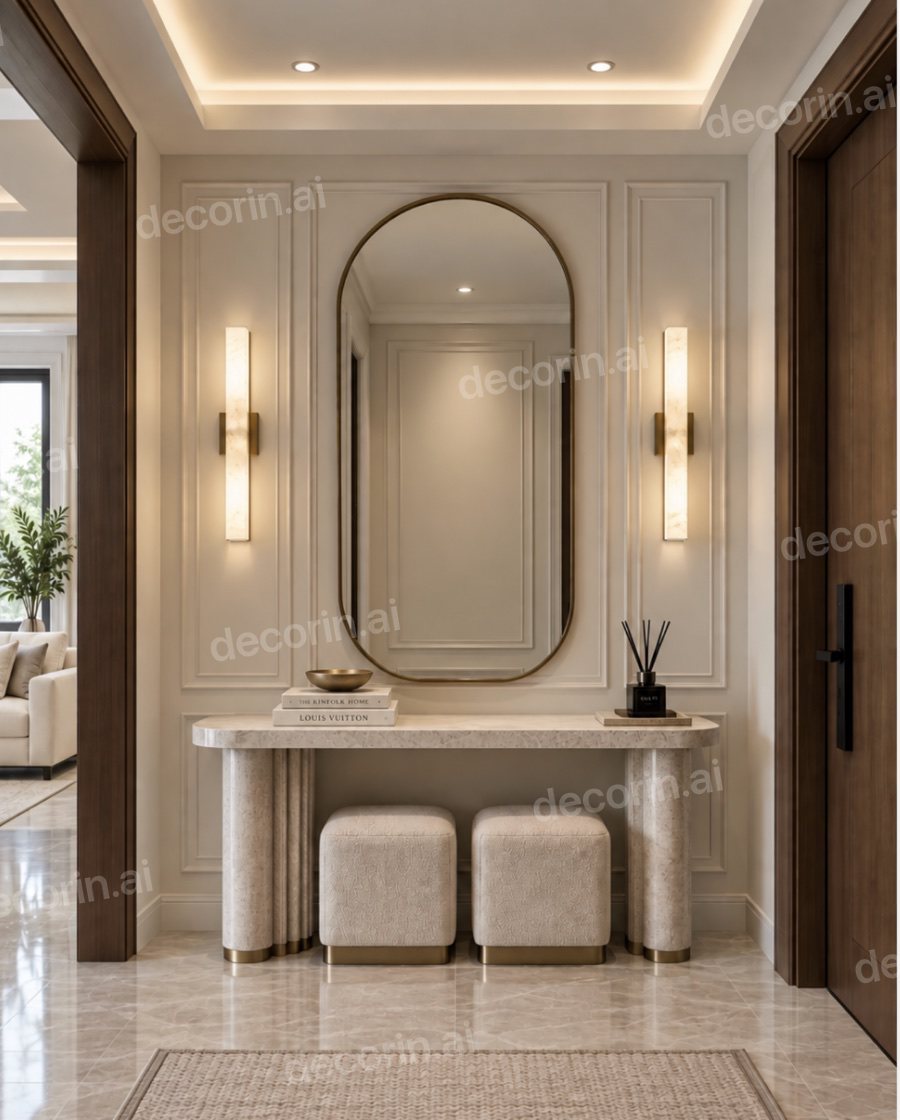
The console was swapped for a stone-topped table on brass legs. The mirror, wall panels, sconces and stools are the originals.
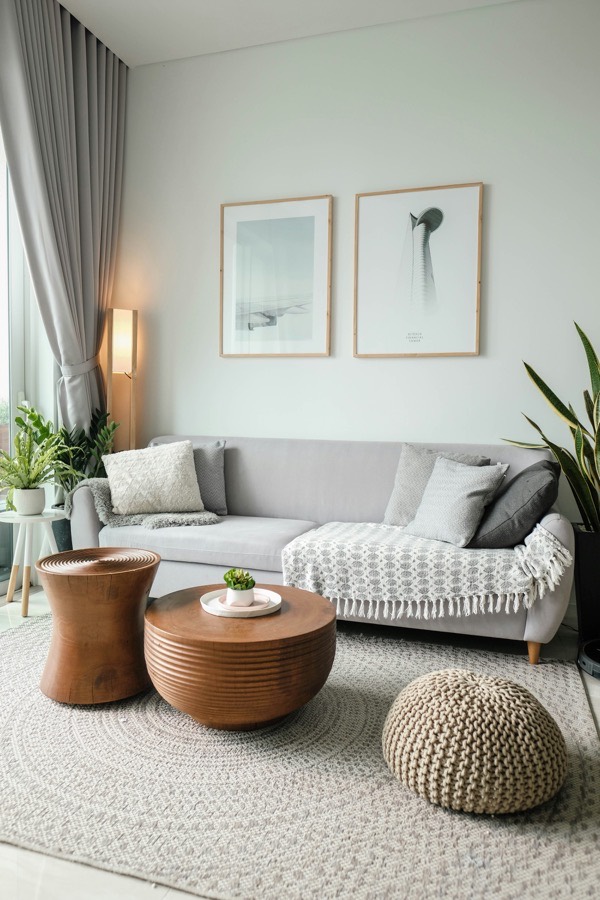
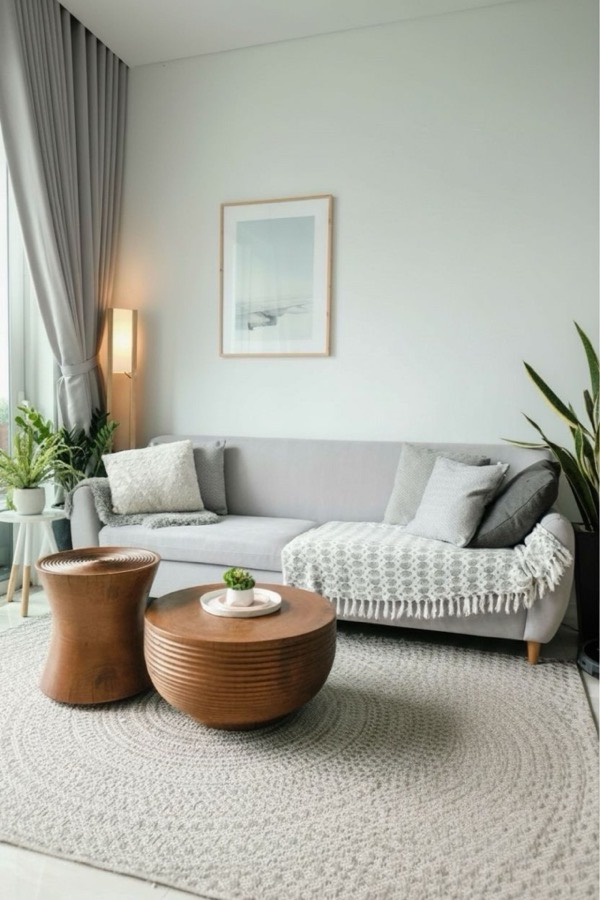
Removing works the same way: mark the pouf and a print, and only they disappear.
What to type (prompt examples)
| You want | Type something like |
|---|---|
| A new sofa | Cognac leather sofa with slim arms and wooden legs |
| A sectional | Light gray L-shaped sectional, low and deep |
| A new bed | Upholstered bed in oatmeal linen with a tall headboard |
| A dining table | Round white oak dining table on a pedestal base |
| Chairs | Two black spindle-back dining chairs |
| A rug | Large vintage-style rug in rust and cream |
| A coffee table | Round travertine coffee table, low |
- Name the material and color. They matter more than the style word.
- Mention size if it matters: "small," "low," "long," "two-seat."
- One piece per edit. Change the sofa, then the table. Two at once is harder to control.
When it goes wrong (and how to fix it)
| Problem | Fix |
|---|---|
| Other things in the room changed | You used a full restyle. Use a targeted edit (Replace Objects) instead |
| The new piece is too big or too small | Add size words ("compact," "three-seat") and redo just that piece |
| It kept the old piece | Brush over more of the object, including its legs and edges |
| It looks pasted in | Use a photo with even daylight; harsh shadows are hard to match |
| The wrong object changed | Brush mostly over the piece you mean and less over neighbors |
Planning the actual purchase? Check the dimensions in what size sofa you need and the rug size chart.
Swap one piece in your room
Upload a photo and see your room redesigned free in the browser — then swap just the sofa, table or bed in the DecorIn app. Everything else stays as it is.
✨ Try It on My Room — FreeTry it on your own room
Take a photo of the room and start with a free redesign in DecorIn in your browser, then use Replace Objects in the iPhone app to try the one piece you've been thinking about replacing. You'll know in seconds whether it works with your floor, your walls and the rest of your furniture — before you order anything. For more on single-item edits, see how to change one thing in a room photo and the AI furniture replacement page.
Frequently asked questions
How do I replace furniture in a photo of my room?
Use an AI tool with targeted or masked editing. Mark the piece you want to change, describe the new one by type, color and material, and only that area is regenerated. In the DecorIn app, choose Replace Objects, brush over the piece and type what you want.
Why does AI change my whole room when I only want a new sofa?
Most AI tools regenerate the entire image from your photo and a style. To change one item, the tool needs a mask or a marked area so it only redraws that part and keeps the rest of the original photo.
Can I see a new sofa in my living room before buying?
Yes. Upload a photo of your living room to an AI room design tool such as DecorIn, mark the current sofa and describe the new one to see it in your real room.
Can AI remove furniture from a room photo?
Yes. Mark the object you want gone and a remove-objects tool fills the space with matching floor and wall, leaving the rest of the room unchanged.