Home · Blog · AI Changed My Whole Room
AI Changed My Whole Room — and I Only Wanted a Sofa
This is the single most common frustration with AI interior design, and it is not user error. It is how most of these tools are built. Here is the why, and the fix.
Short version
It is not your prompt. Most tools regenerate the entire image by design.
Prompting harder does not fix it — but a few phrasings reduce the damage.
The actual fix is a tool with masked editing, which only rewrites the area you mark.
Check the opposite wall to find out whether a tool really preserves your room.
What is actually happening
You uploaded a photo of your living room. You asked for a different sofa. What came back has a different sofa, a different floor, different windows, a rug you never mentioned, and a room that is recognizably a living room but not your living room.
Here is the mechanism. Most AI interior tools take your photo as a loose reference and generate a completely new image from it. The photo influences composition and perspective; it does not constrain the details. Every pixel in the output is newly drawn. There is no step in which the model is told which parts of your room are off-limits, because you were never given a way to say so.
So the tool did not ignore you. It did exactly what it does, which is redraw the room. The problem is that "redraw the room" was presented to you as "change the sofa."
Why it is not your prompt
The instinct is to blame the wording and try again with more emphasis. Only change the sofa. Do not change the floor. Keep everything else exactly the same.
This helps less than it should. The model is generating an image that satisfies your description — and your description of "everything else" is far less specific than your description of the sofa. It has a detailed instruction for one object and a vague instruction for the other ninety percent of the frame, so the ninety percent drifts toward whatever the style suggests.
Capital letters do not change this. Neither does asking more politely, or listing every item you want preserved. The constraint you need does not exist at the prompt level.
Workarounds that partly help
If you are stuck with a whole-room tool, these genuinely reduce the drift:
- Lower the strength or creativity setting if the tool exposes one. Lower values stay closer to your photo. You get less dramatic results and more of your actual room — usually the right trade.
- Describe what stays, in detail. Not "keep everything else" but "keep the light oak floor, the white window frames and the gray curtains." Specificity is the only currency the model accepts.
- Ask for one change and name the style of the room as it already is. If your room is Scandinavian, say so. The drift will at least drift toward where you already are.
- Generate several and pick. Inefficient, but the variance between generations is large, and sometimes one of them leaves your floor alone.
All of these are damage limitation. None of them give you control.
The real fix
The fix is a different mechanism, not a better prompt: masked editing. You mark the region that is allowed to change; everything outside the mark is your original photograph, untouched. Not regenerated faithfully — untouched.
With masked editing, "change the sofa and keep everything else" stops being a request the model can ignore and becomes a property of how the image is produced. Your floor cannot change, because your floor was never sent to be redrawn.
This is what DecorIn is built around — mark the sofa, the wall or the floor, change that, and the rest of the room stays exactly as photographed. You can then refine in plain words rather than starting over.
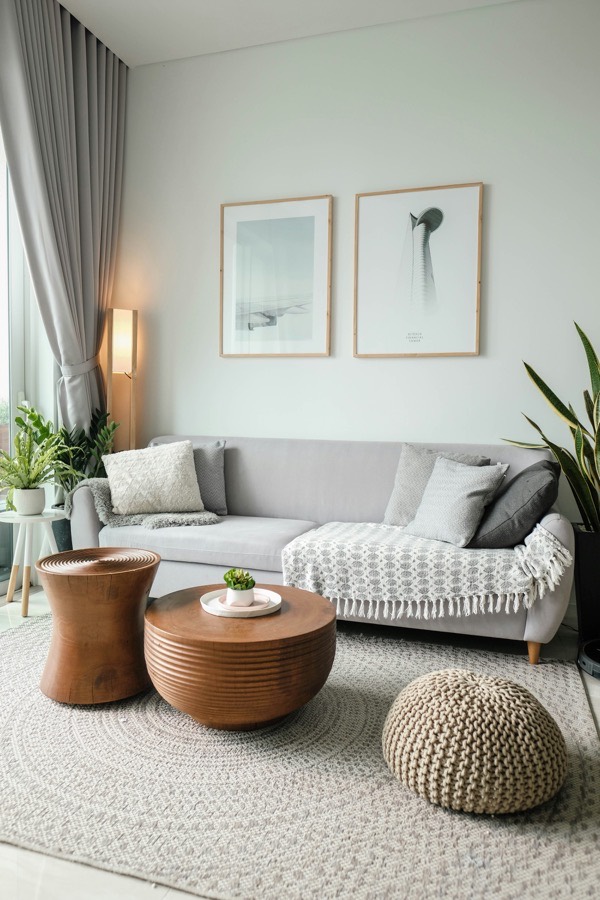
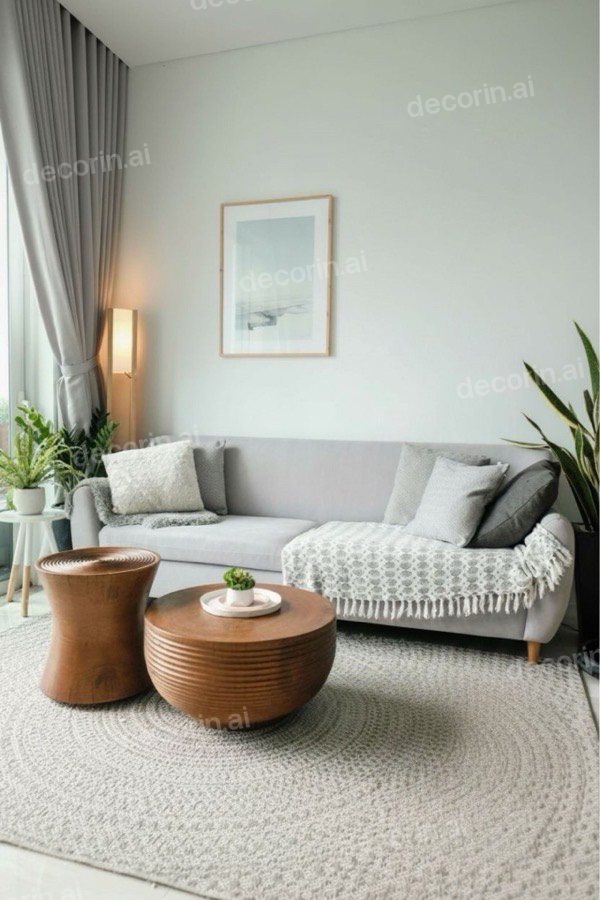
What the fix looks like in practice: “remove the pouf and the right-hand print.” The rug is rebuilt where the pouf sat and nothing else in the frame moves. Full method: how to change one thing in a room photo.
A 2-minute test for any tool
Several tools now advertise region editing while still regenerating the whole frame underneath. Here is how to find out:
- Take one photo of a room with two clearly different walls in shot.
- Use the tool's region feature to change only the left wall's color.
- Look at the right wall in the result. Look at the floor. Look at the window frames.
- If anything on the right side changed — even slightly, even improved — the tool is regenerating the full image and calling it region editing.
Screenshot both and flick between them. Subtle full-frame regeneration is easy to miss when you are looking at the part you wanted changed.
Getting the room you liked back
If you already have a generation that changed too much but that you partly like, you are not stuck:
- Work forward from the original, not the generation. Go back to your photo and make the one change with a masked tool. The generation showed you the direction; it does not have to be the base.
- Take the idea, not the image. Often the useful output was information — that a darker wall works, that a larger rug fixes the proportions. Apply that deliberately.
- Change one thing per generation from now on. It is slower per step and far faster overall, because you can tell what caused what.
You can test this on your own room right now — DecorIn gives you a free redesign in the browser, no signup and no credit card.
Frequently asked questions
Why does AI interior design change things I didn't ask about?
Because most tools generate a completely new image from your photo rather than editing it. Your photo guides composition and perspective but does not constrain details, so every surface is redrawn whether you mentioned it or not.
How do I stop AI from changing my floor or windows?
Prompting alone will not reliably stop it. Use a tool with masked or spot editing, which only regenerates the area you mark and leaves the rest of the photo untouched. If you must use a whole-room tool, lower the strength setting and describe what should stay in specific detail.
Does saying 'keep everything else' work?
Only partly. It is a vague instruction competing with a specific one, so the unspecified parts of the room still drift. Naming exact elements — “keep the light oak floor and white window frames” — works better, but masked editing is the actual solution.
How can I tell if a tool really only edits one region?
Change only one wall's color, then inspect the opposite wall, the floor and the window frames in the result. If anything outside your selection changed, the tool is regenerating the whole image.
Pricing and feature details were checked in September 2026 and change often — verify current terms on each provider's own site before deciding.